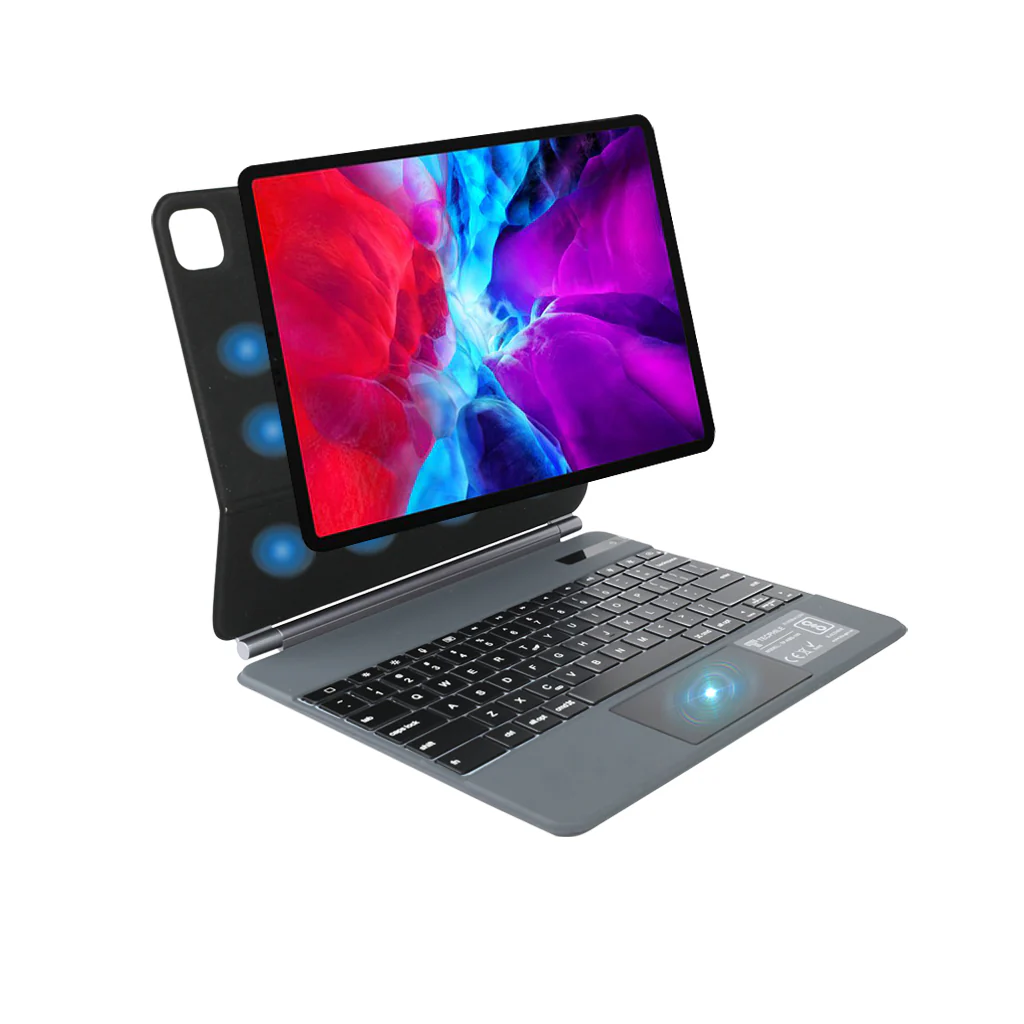



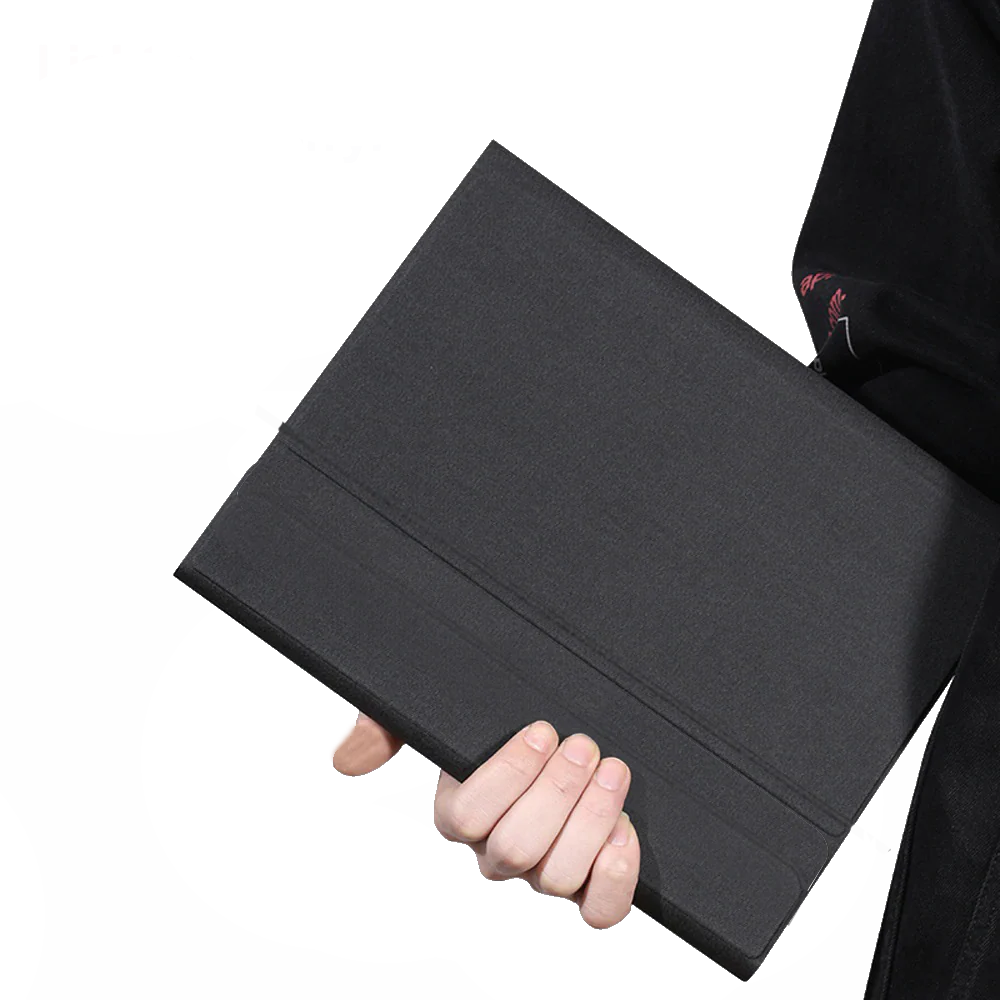
TECPHILE - 1298D Keyboard Case For iPad
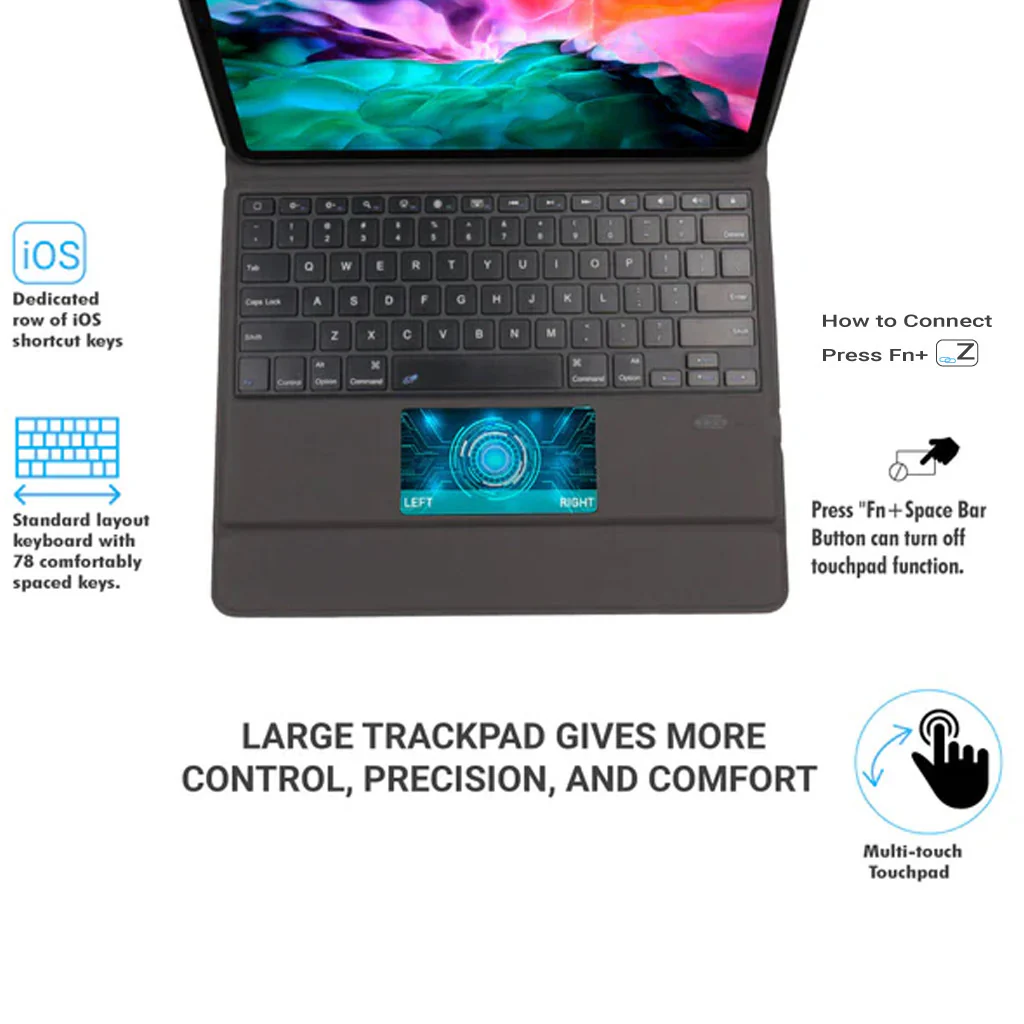
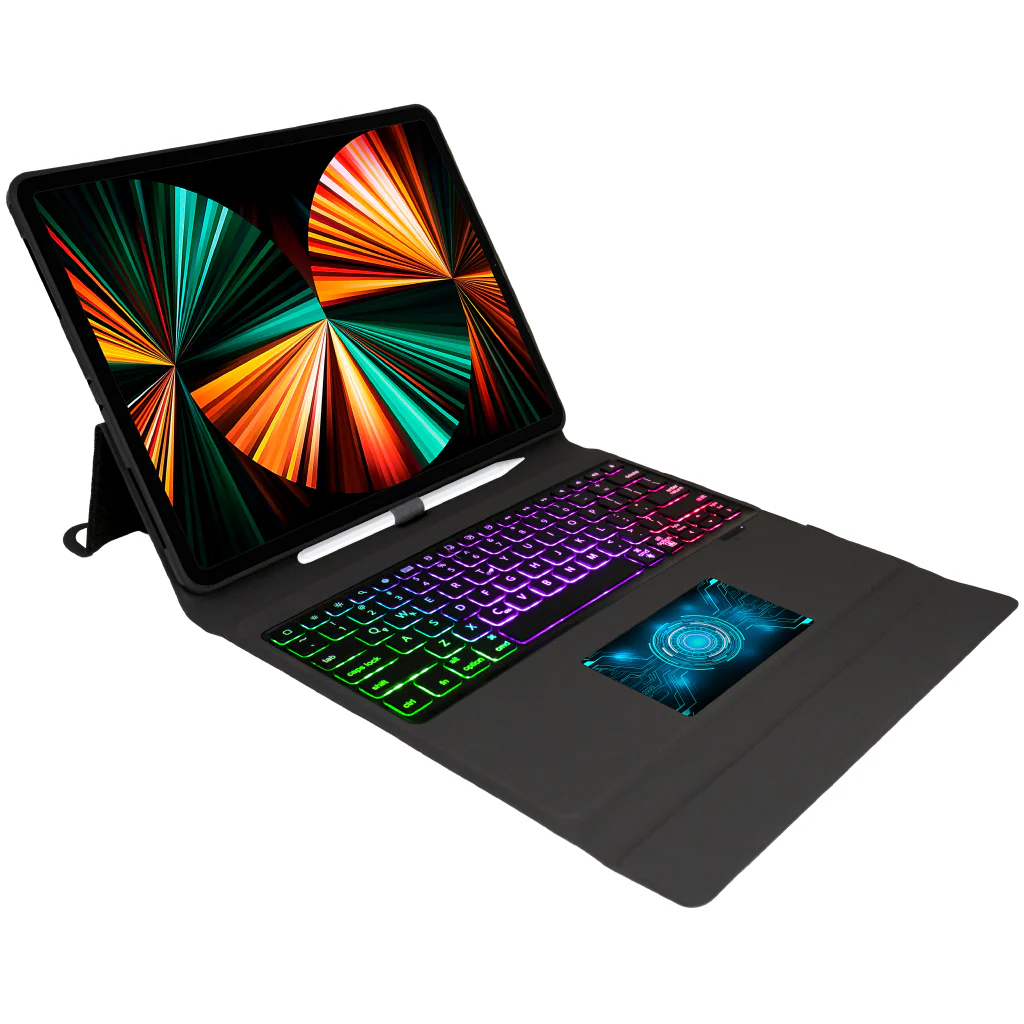
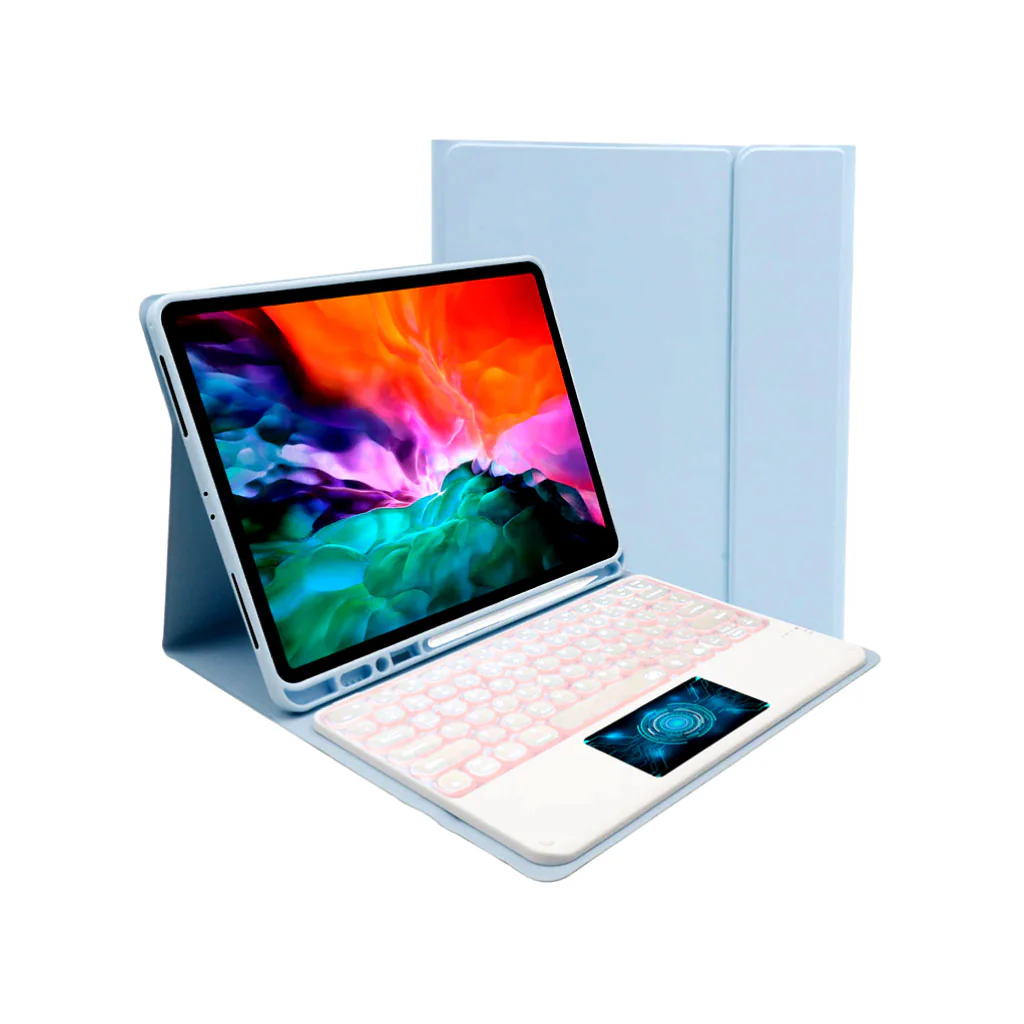
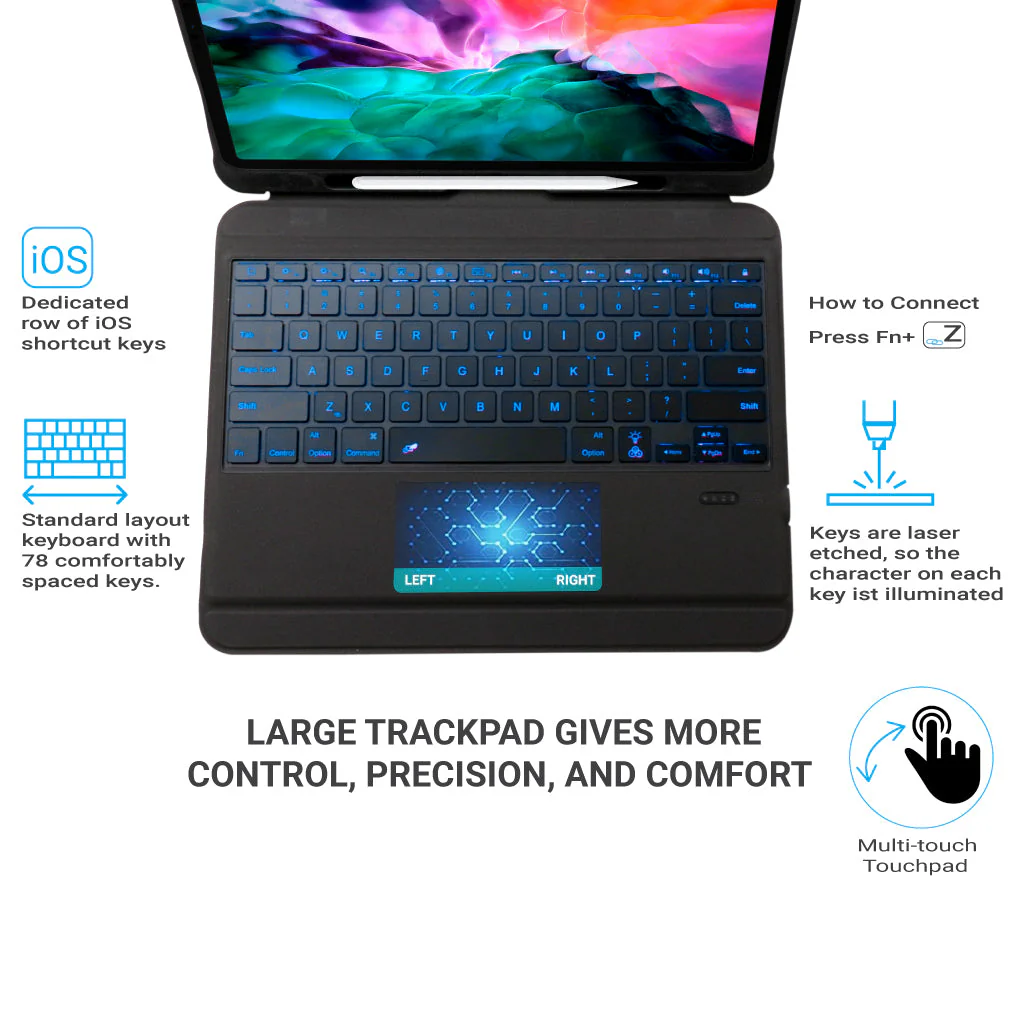
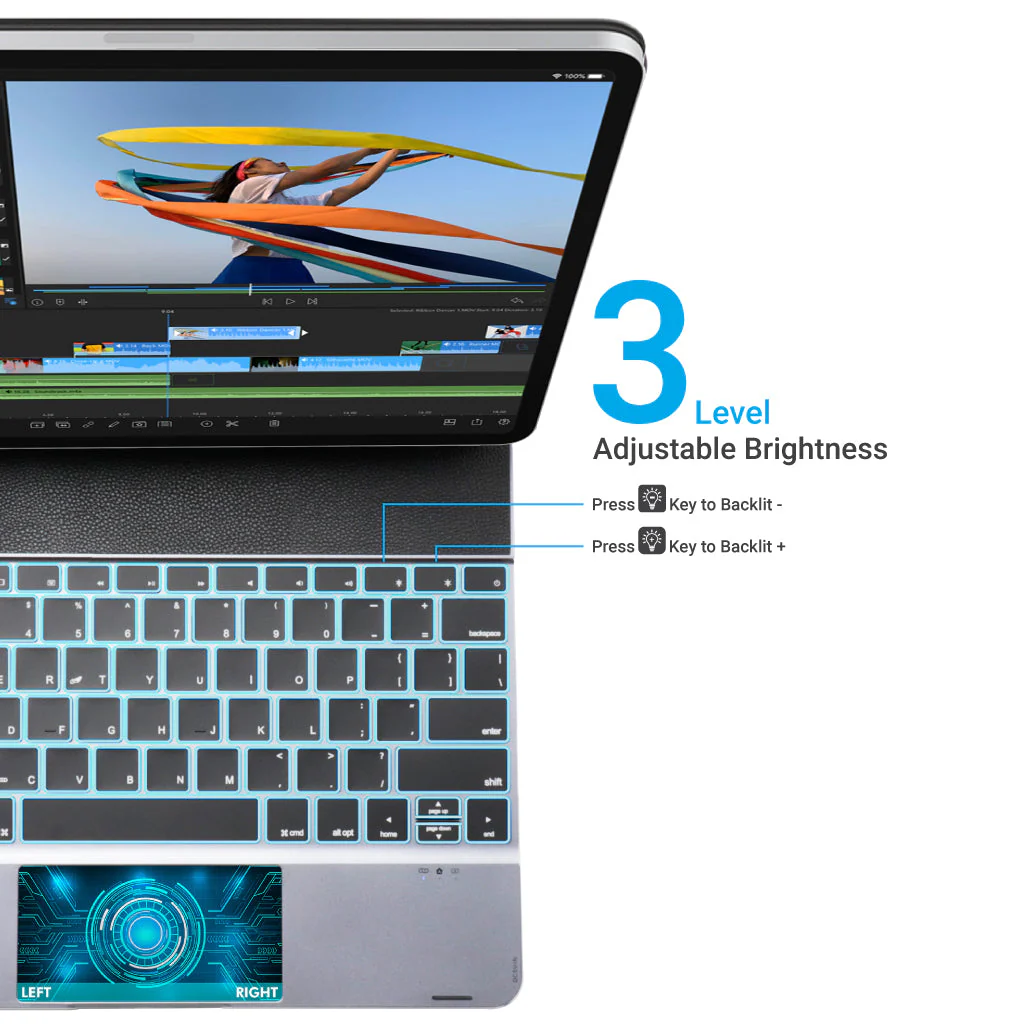
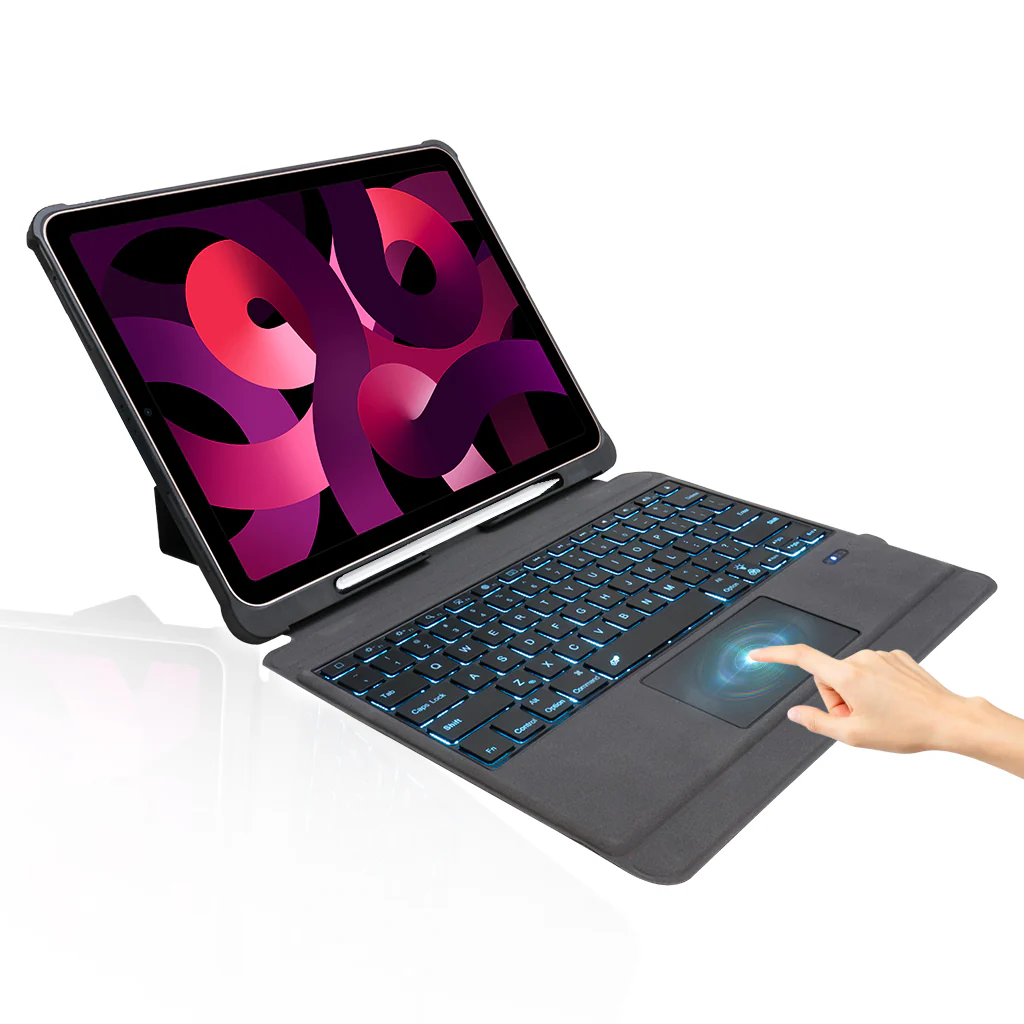
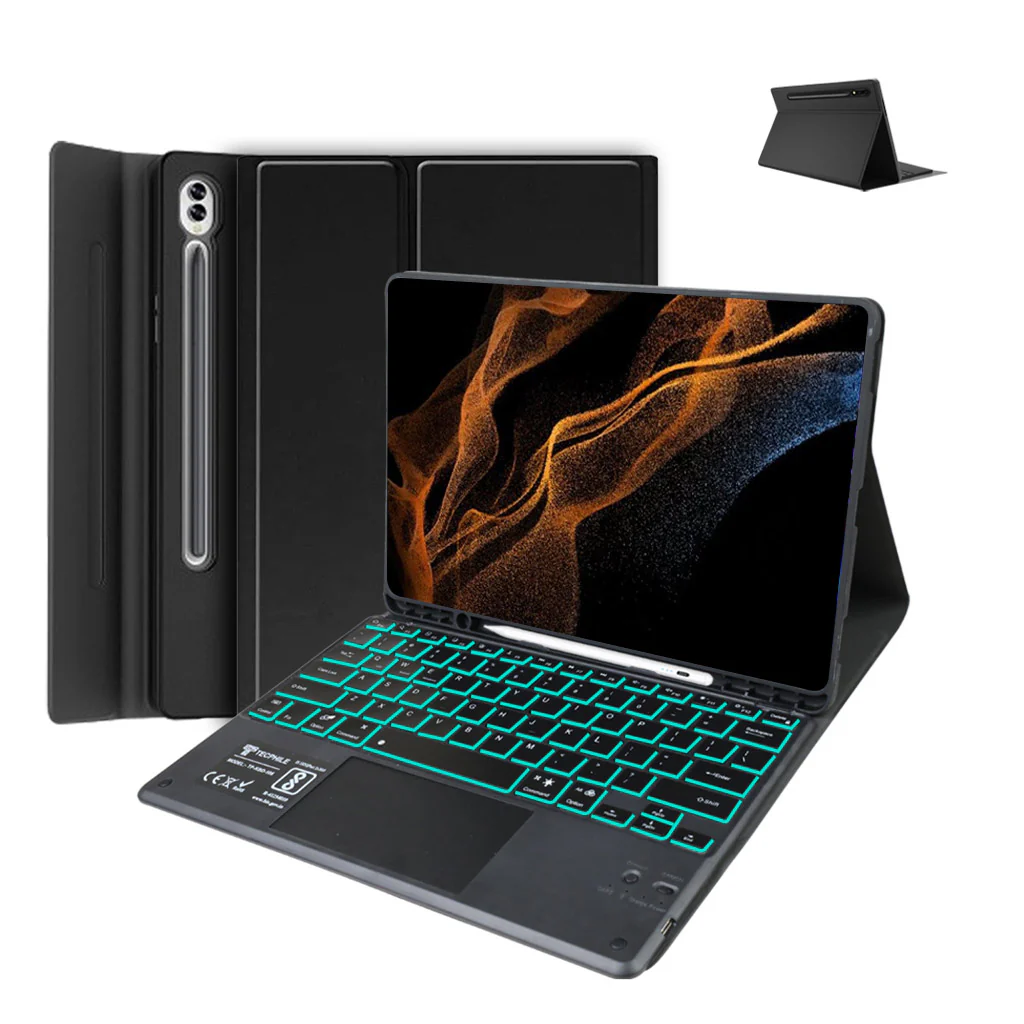
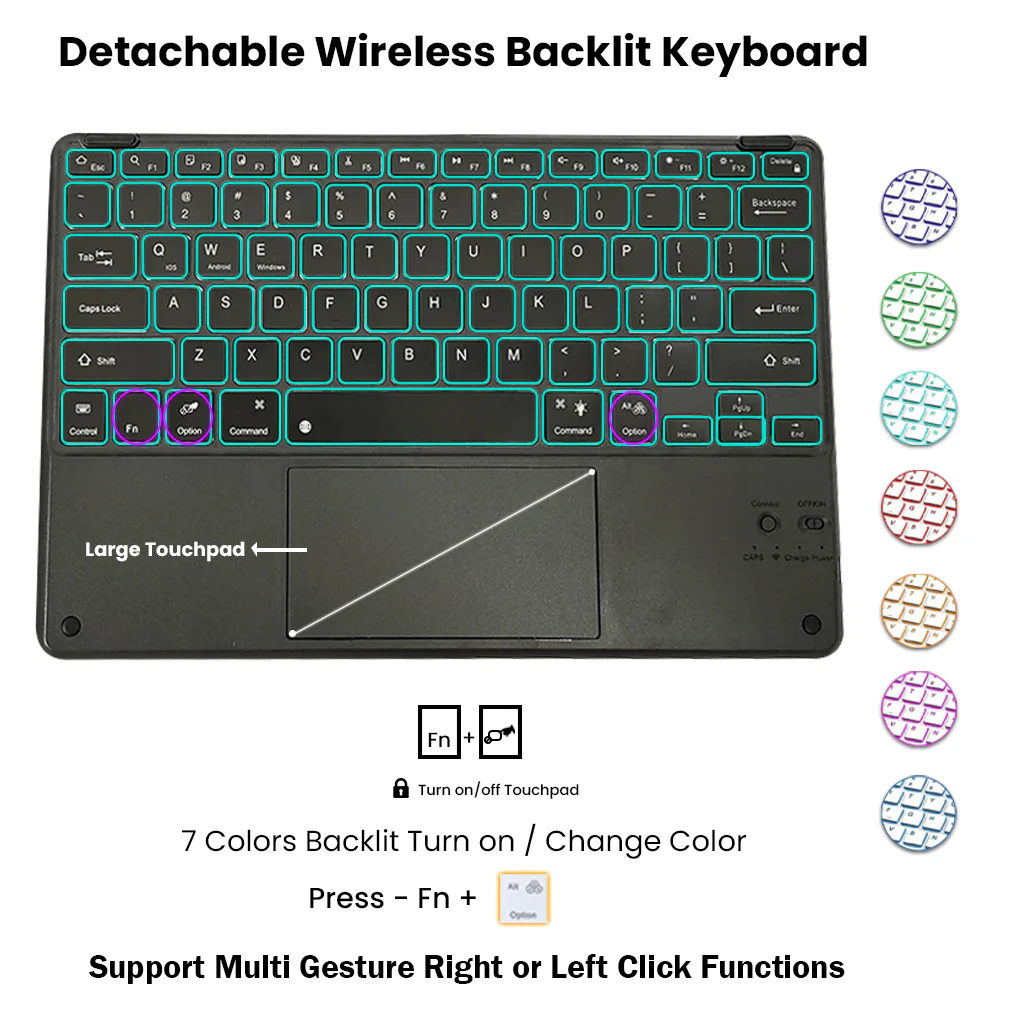
BRILLIANT 7-COLOR BACKLIT: This keyboard case offers seven sophisticated LED backlights in shades of deep blue, soft blue, bright green, white, red, yellow, and pink. It enhances typing in dim or night settings, ensuring a comfortable experience.
AUTO SLEEP FEATURE: Automatically, after 10 minutes of no use, the Bluetooth keyboard goes into sleep mode and disconnects from your device. Simply press any key to wake it up and reconnect instantly.
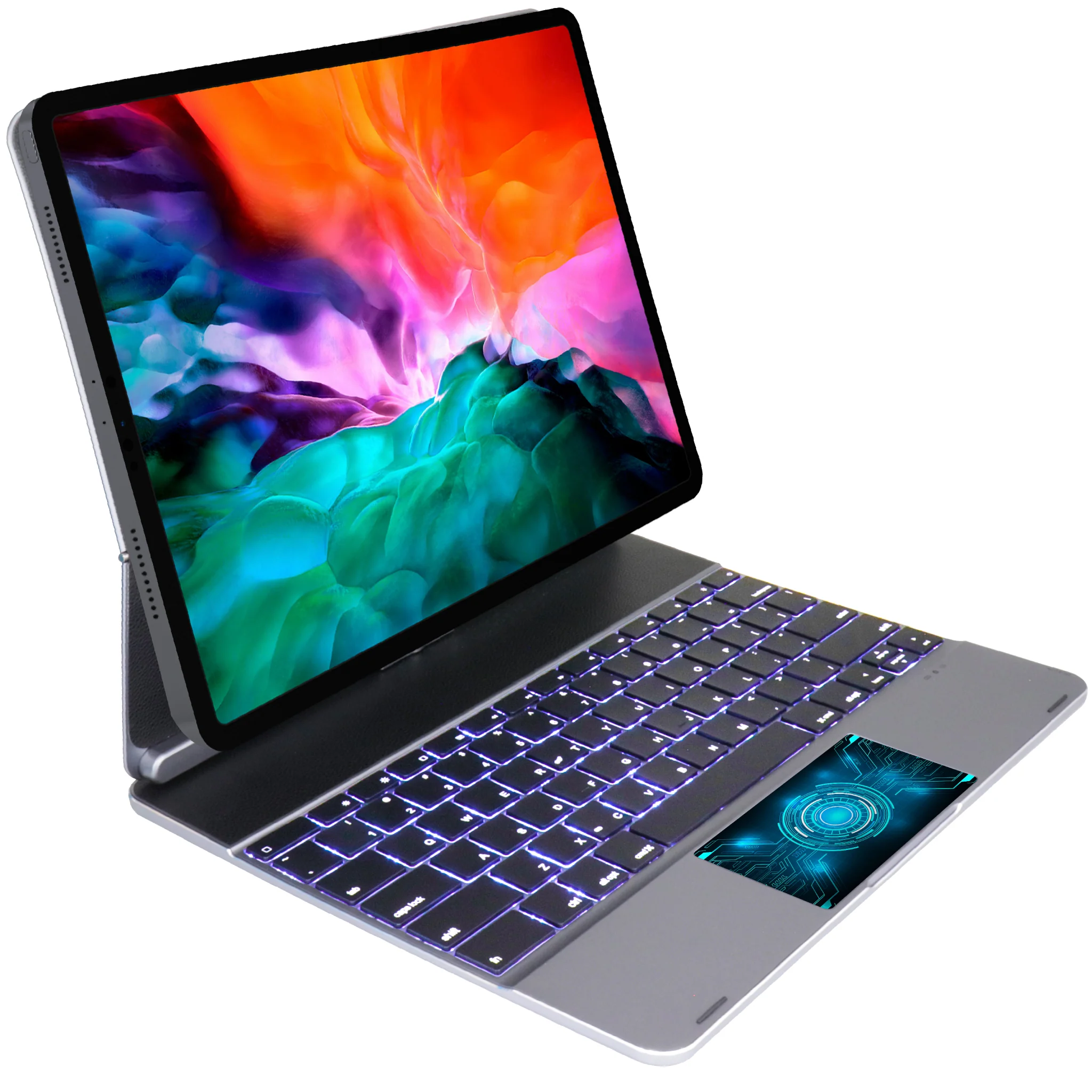
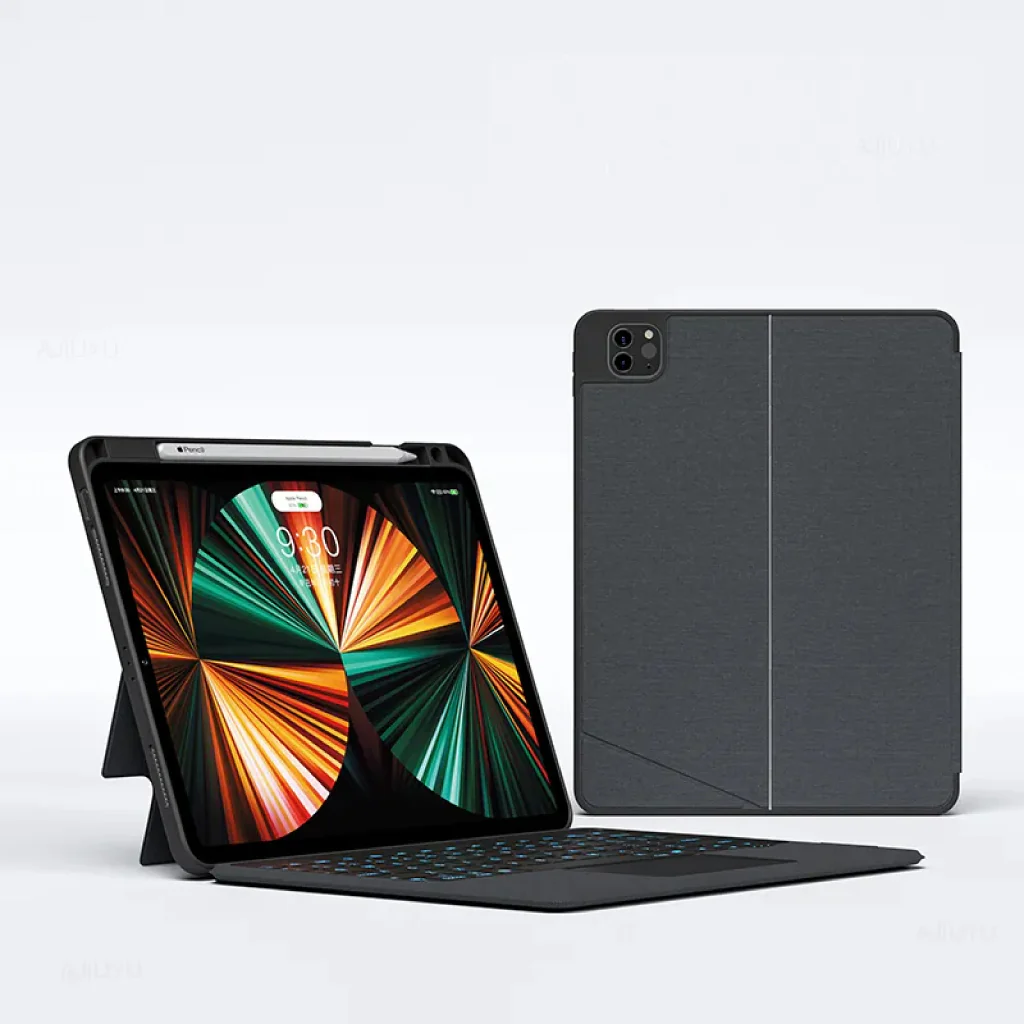
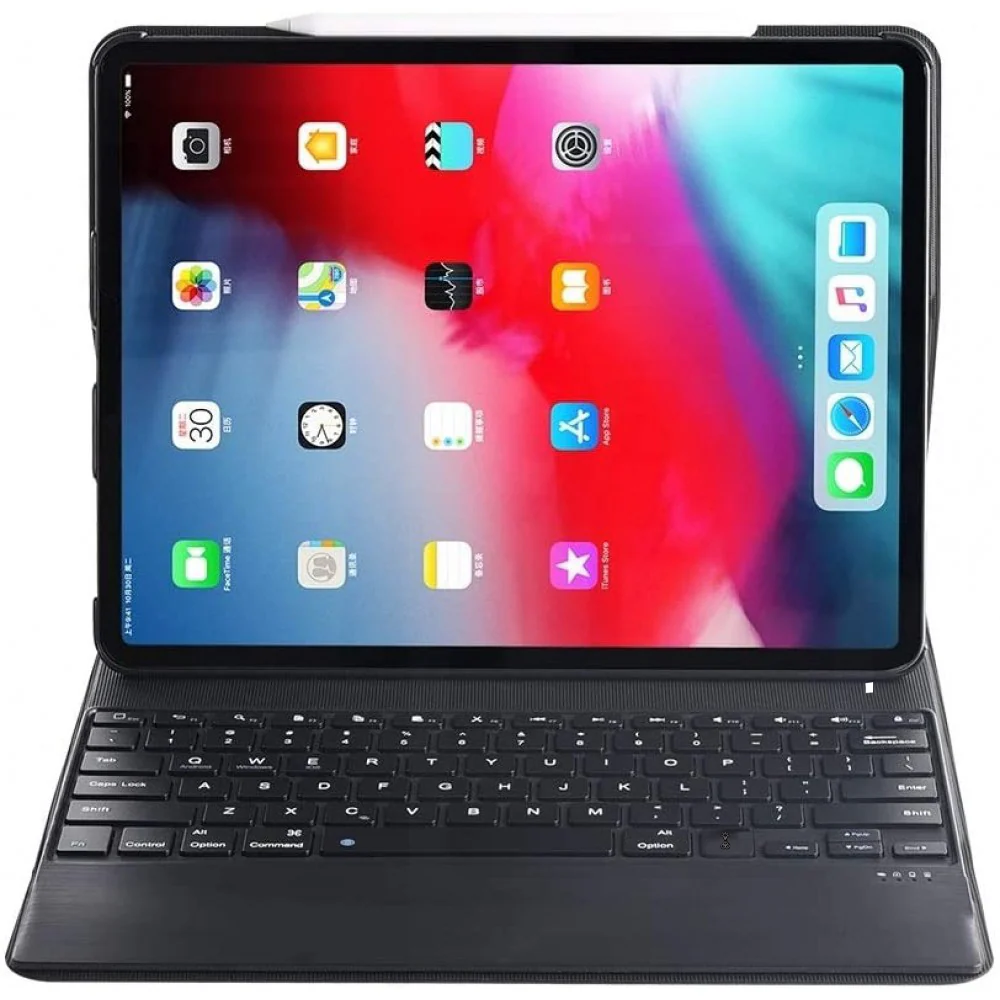
ADJUSTABLE MULTI-ANGLE STAND: Transform your tablet into a laptop with the adjustable multi-angle stand. The stand smoothly reclines from 30° to 180°, maintaining stability. You can engage in various activities like writing, drawing, watching movies, playing games, or working without any risk of your iPad slipping.
EFFORTLESS WIRELESS CONNECTIVITY: Seamlessly pair your tablet with the keyboard case via Bluetooth, eliminating the hassle of tangled cables. The stable 10m Bluetooth connection ensures uninterrupted typing, enhancing productivity on the move.
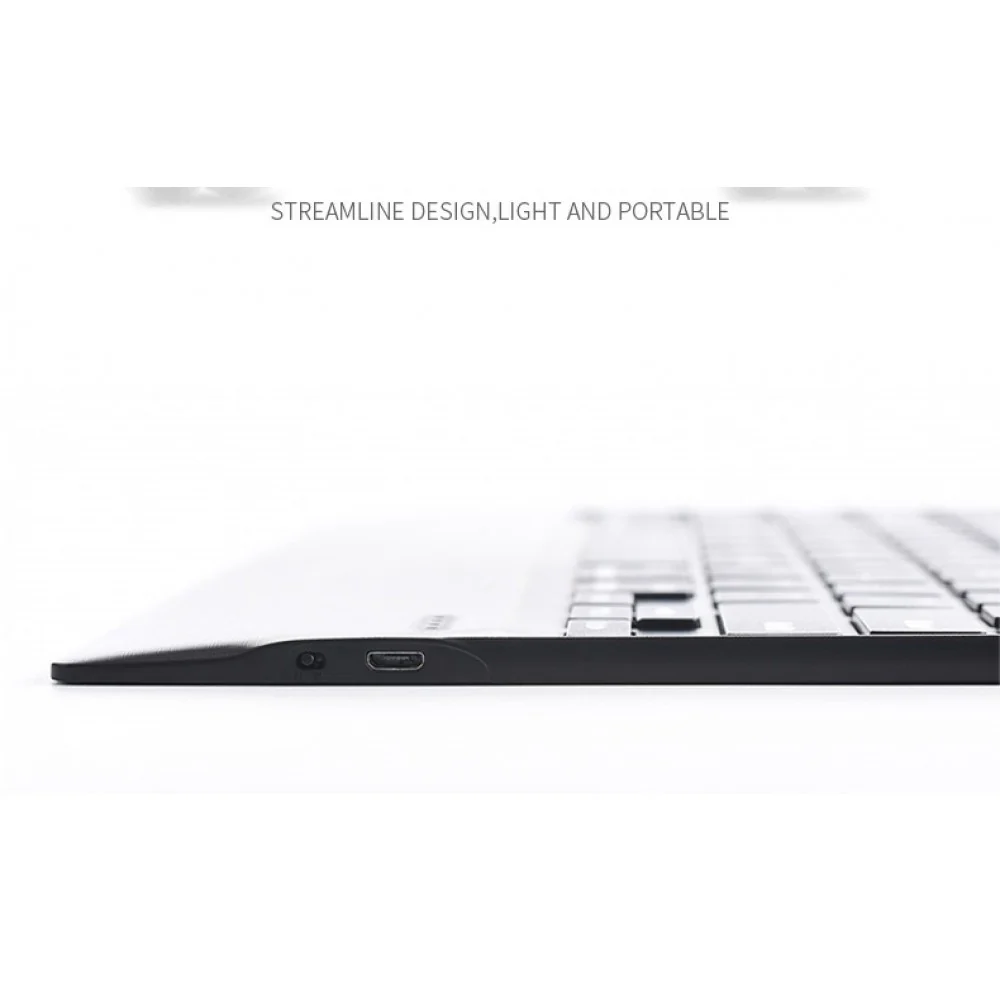
CONVENIENT MICRO USB CHARGING: The 1298D Keyboard Case includes a micro–USB Corded Cable for easy keyboard charging, providing long-lasting usage after a single charge.
How to connect with Devices
Step 1: Before first use, we recommend charging the keyboard for a minimum of 4 to 6 hours.
Step 2: Please press the ‘Fn + C’ Keys to start pairing on the Keyboard. The blue light will start blinking on the keyboard to show the keyboard is in pairing mode.
Step 3: On your device, select the ‘Settings’ icon.
Step 4: Navigate to ‘Bluetooth’ settings and turn on Bluetooth.
Step 5: Select ‘Refresh’ from the settings bar. Your keyboard (Bluetooth Keyboard) will show in the ‘Available Devices’ section.
Step 6: Select the keyboard and press Pair or hit enter. You are now connected!
Troubleshooting
1. Make sure the power is turned on
2. Ensure keyboard operable distance
3. Make sure the battery has power
4. Ensure the device’s Bluetooth was turned on
5. Ensure the wireless keyboard is connected to the Bluetooth
- Ensure the wireless keyboard paired successfully
DISCLAIMER: Kindly use the keyboard with a 5V/1 Amp power adapter only. It will improve the life span of your gear and their batteries.
Original: $26.03
-70%$26.03
$7.81Product Information
Product Information
Shipping & Returns
Shipping & Returns
Description
BRILLIANT 7-COLOR BACKLIT: This keyboard case offers seven sophisticated LED backlights in shades of deep blue, soft blue, bright green, white, red, yellow, and pink. It enhances typing in dim or night settings, ensuring a comfortable experience.
AUTO SLEEP FEATURE: Automatically, after 10 minutes of no use, the Bluetooth keyboard goes into sleep mode and disconnects from your device. Simply press any key to wake it up and reconnect instantly.
ADJUSTABLE MULTI-ANGLE STAND: Transform your tablet into a laptop with the adjustable multi-angle stand. The stand smoothly reclines from 30° to 180°, maintaining stability. You can engage in various activities like writing, drawing, watching movies, playing games, or working without any risk of your iPad slipping.
EFFORTLESS WIRELESS CONNECTIVITY: Seamlessly pair your tablet with the keyboard case via Bluetooth, eliminating the hassle of tangled cables. The stable 10m Bluetooth connection ensures uninterrupted typing, enhancing productivity on the move.
CONVENIENT MICRO USB CHARGING: The 1298D Keyboard Case includes a micro–USB Corded Cable for easy keyboard charging, providing long-lasting usage after a single charge.
How to connect with Devices
Step 1: Before first use, we recommend charging the keyboard for a minimum of 4 to 6 hours.
Step 2: Please press the ‘Fn + C’ Keys to start pairing on the Keyboard. The blue light will start blinking on the keyboard to show the keyboard is in pairing mode.
Step 3: On your device, select the ‘Settings’ icon.
Step 4: Navigate to ‘Bluetooth’ settings and turn on Bluetooth.
Step 5: Select ‘Refresh’ from the settings bar. Your keyboard (Bluetooth Keyboard) will show in the ‘Available Devices’ section.
Step 6: Select the keyboard and press Pair or hit enter. You are now connected!
Troubleshooting
1. Make sure the power is turned on
2. Ensure keyboard operable distance
3. Make sure the battery has power
4. Ensure the device’s Bluetooth was turned on
5. Ensure the wireless keyboard is connected to the Bluetooth
- Ensure the wireless keyboard paired successfully
DISCLAIMER: Kindly use the keyboard with a 5V/1 Amp power adapter only. It will improve the life span of your gear and their batteries.